Please refer to “3 Steps to setup jDeveloper for OAF Projects” If you haven’t setup your jDeveloper yet.
This article, “oaf hello world example” will help you learn how to Develop Hello world page OAF Page.
- Create new OA Workspace and Project
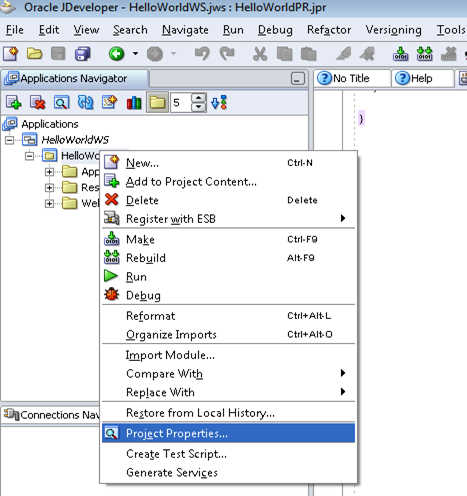
- Set Project properties
- Create Application
- Develop OAF Helloworld page
- Run OAF Page
1. Create New OA Workspace and Project
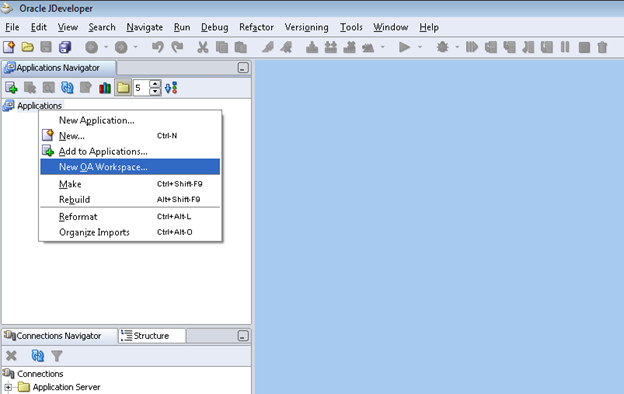
Right click on Applications node and select New OA Workspace
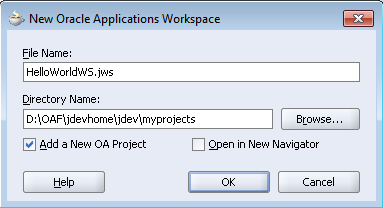
Give the workspace name and browse the directory name. All the files related to the Workspace will be saved in myprojects folder now.
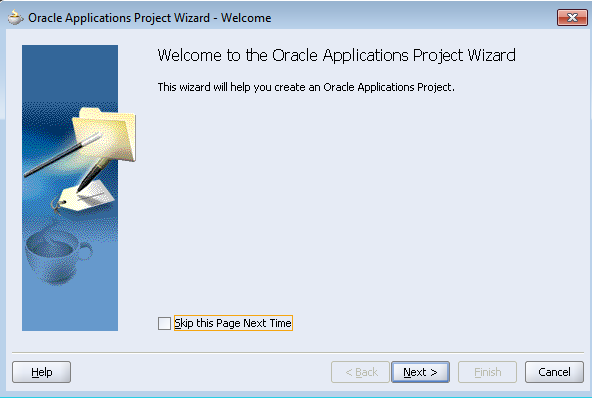
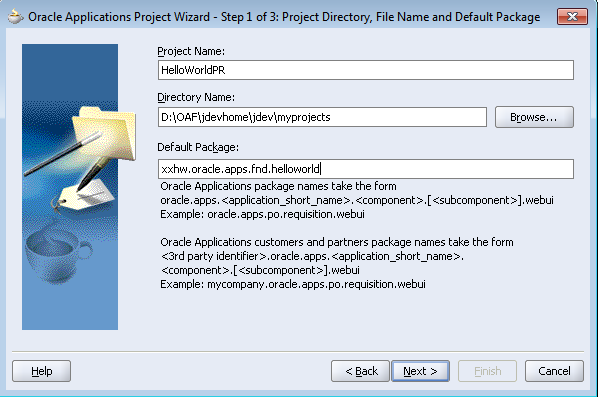
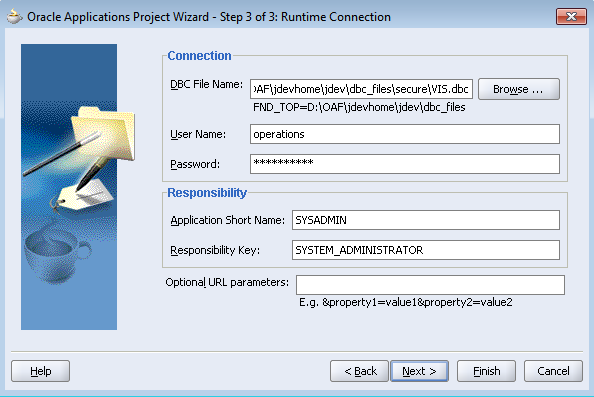
Give the details as below to create a helloworld project.
Provide the connection details
DBC file : D:OAFjdevhomejdevdbc_filessecureVIS.dbc
E business suite Username/password
Responsibility: The given responsibility should be attached to the given user
2. Set Run Options in OA Project Setting
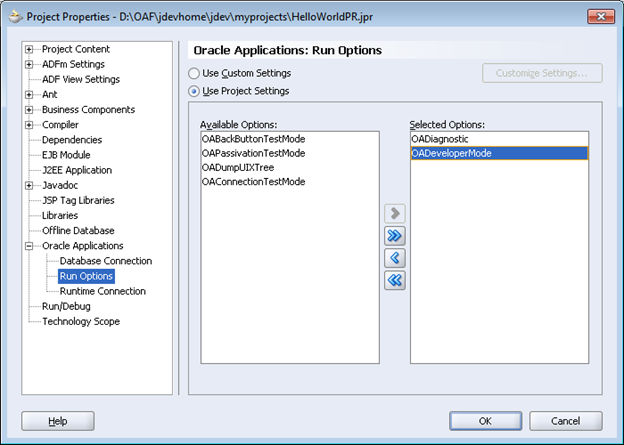
Select Oracle Applications > Run Options
Select OADeveloperMode and OADiagnostic, and move them to selected Options List
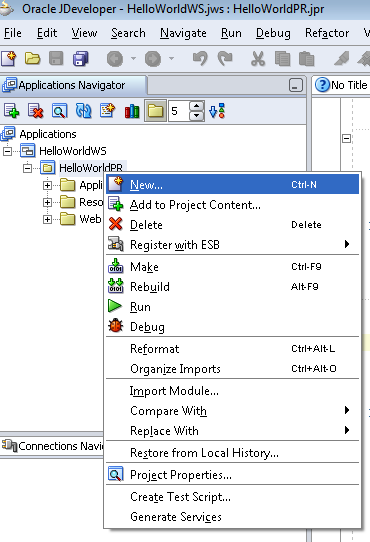
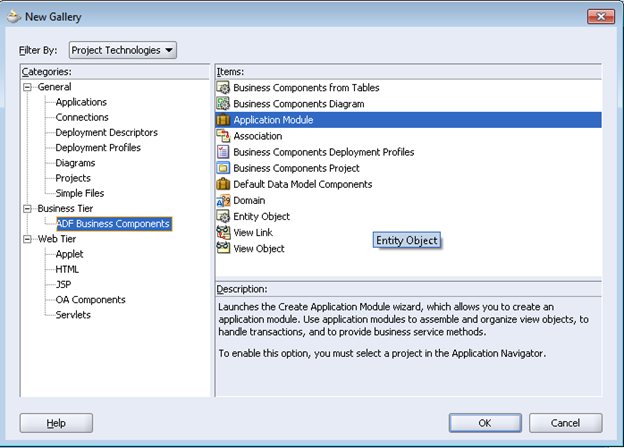
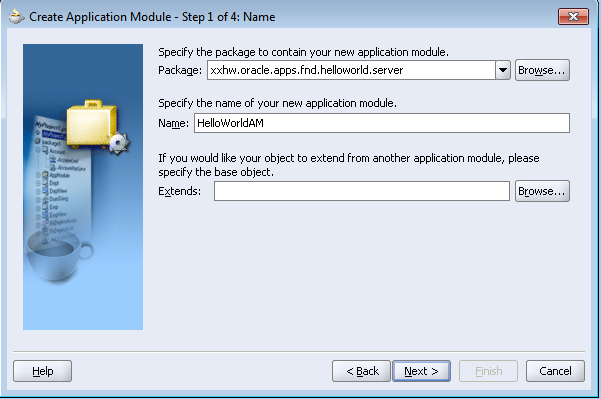
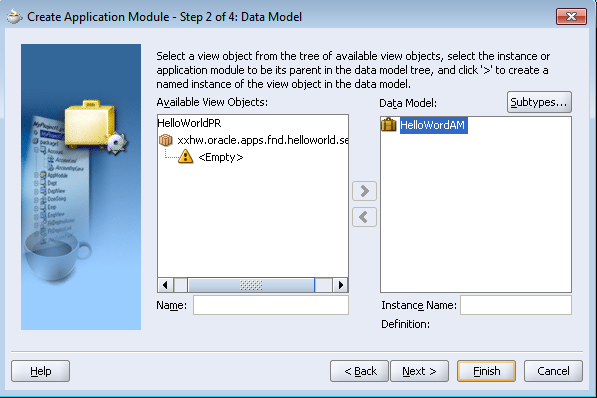
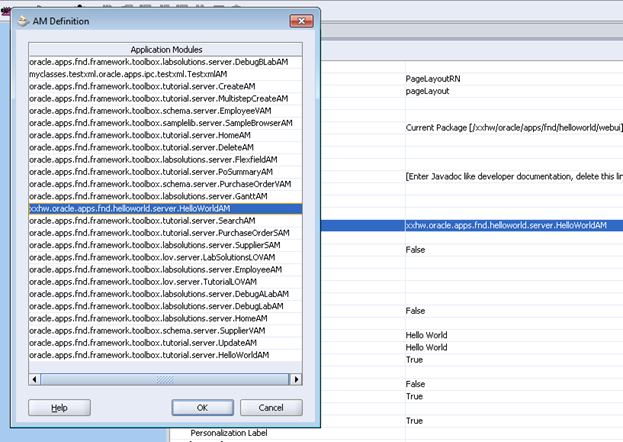
3. Create an Aplication Module
4. Create a Hello World Page
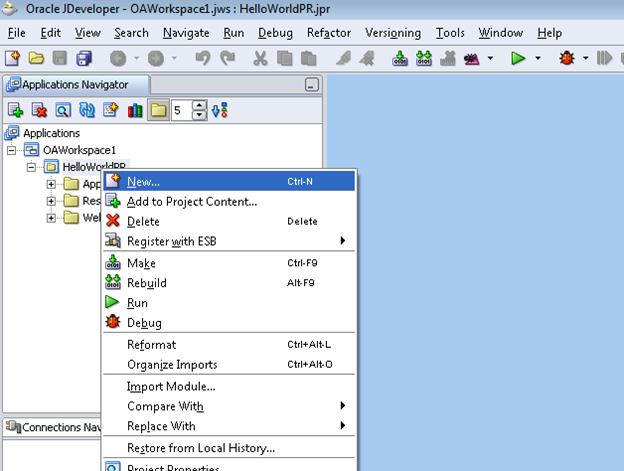
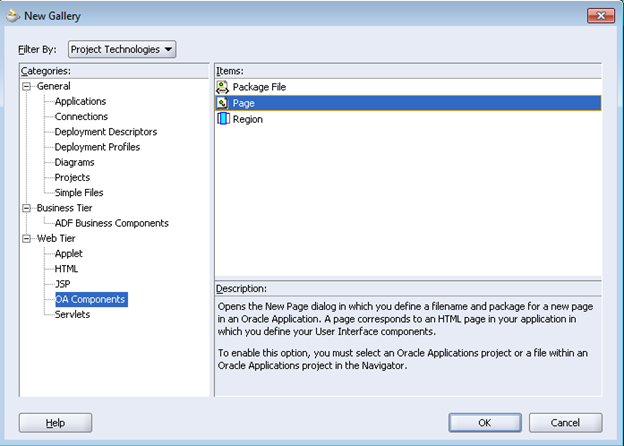
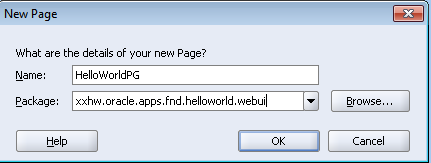
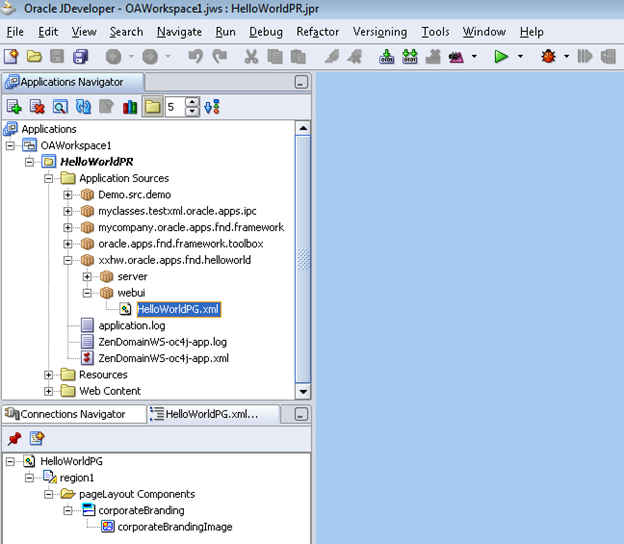
Page Layout region will be created automatically. Set the region properties as below.
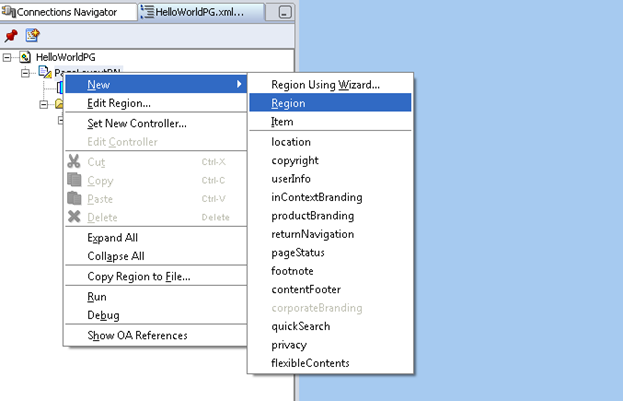
Create a new region.
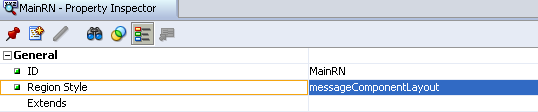
Set the region properties as below
| Property Name | Value |
| ID | MainRN |
| Region Style | messageComponentLayout |
Create new TextInput item to enter the text value.
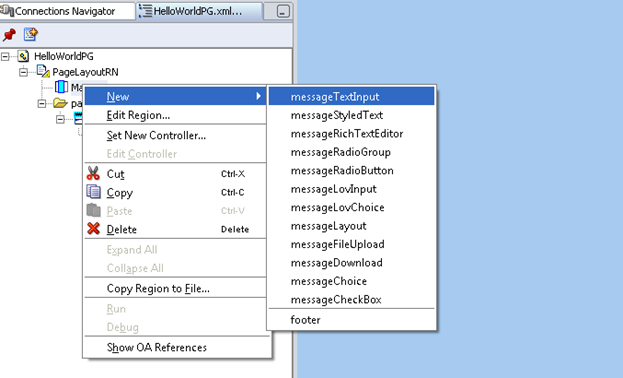
Set the item properties as below
| Property Name | Value |
| ID | NameID |
| Item Style | messageTextInput |
| Prompt | Name |
| Length | 20 |
Create button layout region.
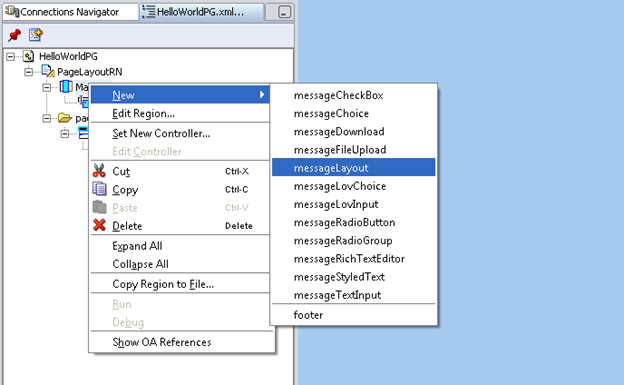
Set the item properties as below
| Property Name | Value |
| ID | ButtonLayout |
Create an Item GO Button
Select ButtonLayout > New > Item
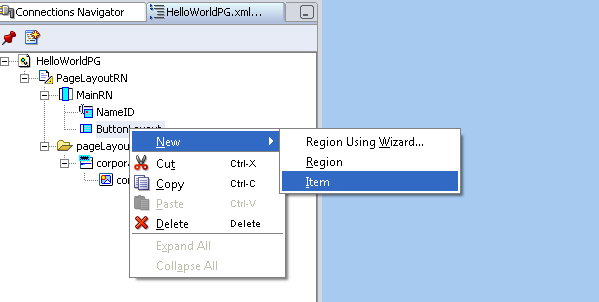
Set the item properties as below
| Property Name | Value |
| ID | GO |
| Item Style | submitButton |
| Attributes |
Save your work and Run the page

Add a Controller to the page.
MainRN -> Set New Controller
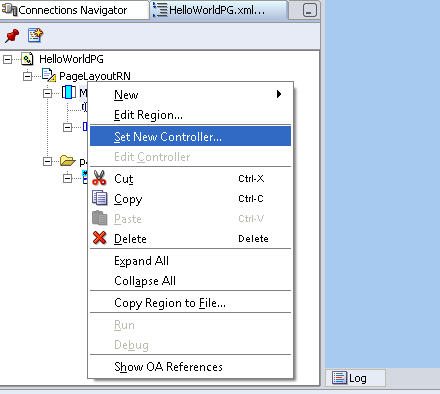
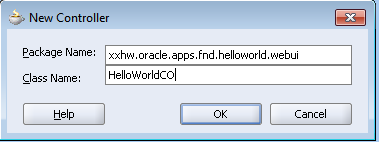
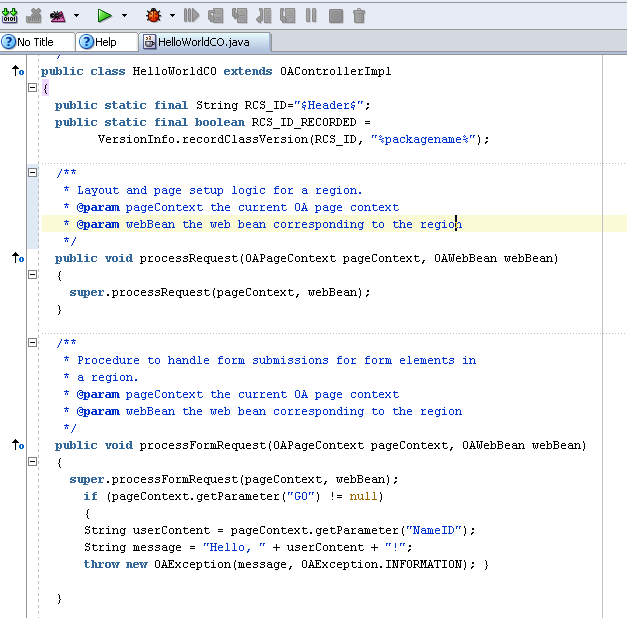
Add below coding part to the Controller file to display the text data on page.
public void processFormRequest(OAPageContext pageContext, OAWebBean webBean)
{
super.processFormRequest(pageContext, webBean);
if (pageContext.getParameter(“GO”) != null)
{
String userContent = pageContext.getParameter(“NameID”);
String message = “Hello, ” + userContent + “!”;
throw new OAException(message, OAException.INFORMATION);
}
}
5. Run OAF Page
Right click on page and click Run to run the page locally.
Page gets loaded as below

Enter a string in Name field and click Go

What ever you typed in Name field will appear as Information which is highlighted.
